 Atdunbg
020c3db871
Atdunbg
020c3db871
All checks were successful
Hexo Build and Deploy / Build Hexo and Deploy to GitHub (push) Successful in 6m59s
168 lines
5.9 KiB
Markdown
168 lines
5.9 KiB
Markdown
---
|
||
title: 如何在 linux 上玩 鸣潮
|
||
tags: [鸣潮, 游戏, archlinux, linux]
|
||
date: 2026-01-29 20:50:32
|
||
catagories: 游戏
|
||
thumbnail: "https://cdn.jsdelivr.net/gh/atdunbg/hexo_image_assets@main/images/wuthering_waves_feibi.jpg"
|
||
---
|
||
|
||
|
||
|
||
> 个人用的是archlinux + kde/niri
|
||
>
|
||
> 主要是通过[proton-ge](https://github.com/GloriousEggroll/proton-ge-custom)去跑的,效果几乎和windows无差别,基本上无性能损失
|
||
|
||
## 1. 准备必要环境
|
||
|
||
### 1.1 安装steam
|
||
|
||
```bash
|
||
# archlinux可以通过aur下载
|
||
paru -S steam
|
||
```
|
||
|
||
### 1.2 安装 proton-ge
|
||
|
||
[proton-ge](https://github.com/GloriousEggroll/proton-ge-custom) 是 steam 中的 proton的一个分支版本,属于社区版本,其对好些其他非steam游戏额外做了些支持。
|
||
|
||
建议手动下载仓库的包,然后解压到steam对应目录中
|
||
|
||
```bash
|
||
# 下载proton-ge 文件 https://github.com/GloriousEggroll/proton-ge-custom
|
||
|
||
# 创建 以下文件夹
|
||
mkdir ~/.steam/steam/compatibilitytools.d
|
||
|
||
# 解压下载的文件到 刚才创建的文件夹中
|
||
tar -xf GE-Proton*.tar.gz -C ~/.steam/steam/compatibilitytools.d/.
|
||
```
|
||
|
||
重启并打开`steam`->`设置`->`兼容性`
|
||
|
||
steam会找到刚才解压的GE-Protonxx-xx,选择此项,重启即可。
|
||
|
||
### 1.3 安装lutris(可选)
|
||
|
||
一款集成的强大的游戏管理器,我主要用他搭建一些其他游戏环境和管理一些游戏,可选安装,但是极度推荐。
|
||
|
||
如果仅仅只玩鸣潮的话,这个就没必要下载了。
|
||
|
||
```bash
|
||
paru -S lutris
|
||
```
|
||
|
||
## 2. 准备游戏
|
||
|
||
### 2.1 使用LutheringLaves
|
||
|
||
**这里比较推荐使用[LutheringLaves](https://github.com/last-live/LutheringLaves)(国内镜像:[gitee](https://gitee.com/tiz/LutheringLaves))这个项目进行安装,项目本身介绍比较全面,这里不做具体解释了。**
|
||
|
||
若使用此方法可以跳过`2.2 使用官方启动器`,请移步至`3. 配置steam启动非steam游戏`。
|
||
|
||
### 2.2 使用官方启动器
|
||
|
||
官方启动器使用有点麻烦,不太建议使用。
|
||
|
||
官方启动器在linux 不能通过正常方式打开,但,也不是没有解决办法。
|
||
|
||
这里推荐使用`lutirs`安装。
|
||
|
||
#### 2.2.1 安装官方启动器
|
||
|
||
进入[官网](https://mc.kurogames.com/)下载启动器。
|
||
|
||
打开lutris。
|
||
|
||
1. 首先配置wine的版本,选择左侧列表的wine的选项,在wine的版本选项中选择一个。
|
||
|
||
{% notel default fa-info tips %}
|
||
下载wine的版本可以使用lutris内置的,也可以protonplus进行下载。
|
||
|
||
这里推荐使用protonplus。
|
||
|
||
protonplus可以轻松的以可视化管理wine的版本
|
||
|
||
```bash
|
||
paru -S protonplus
|
||
```
|
||
|
||
{% endnotel %}
|
||
|
||
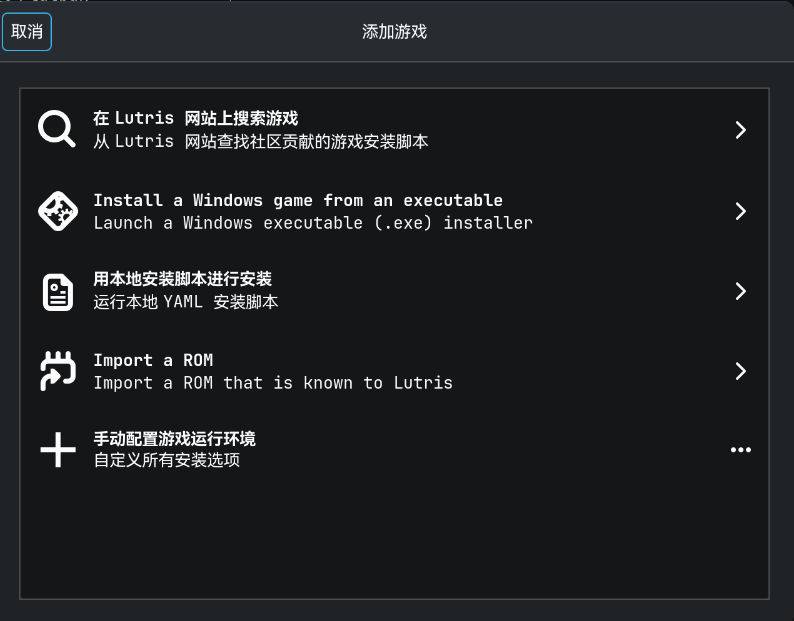
2. 然后再lutris左上角点击加号,选择第二项`Install a Windows game from an executable`, 按照提示输入对应的游戏名字(用于自己辨识)
|
||
|
||
|
||
|
||
3. 选择想要安装的目录,然后选择对应的安装程序包路径即可。
|
||
|
||
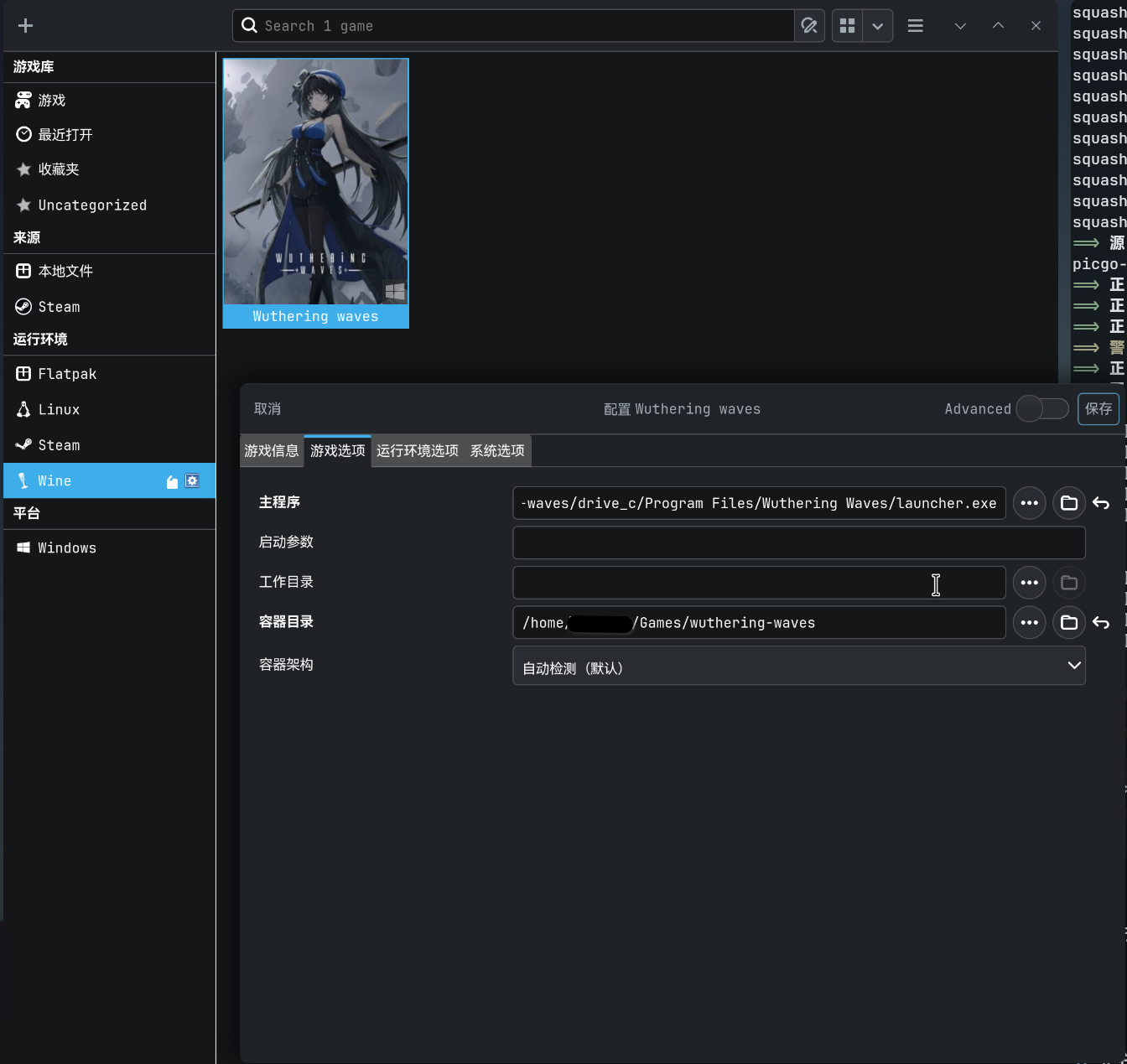
安装完后,右键安装的图表,选择配置,将程序启动路径设为 `/安装路径/drive_c/Program Files/Wuthering waves/launcher.exe`
|
||
|
||
|
||
|
||
#### 2.2.2 修复启动黑屏
|
||
|
||
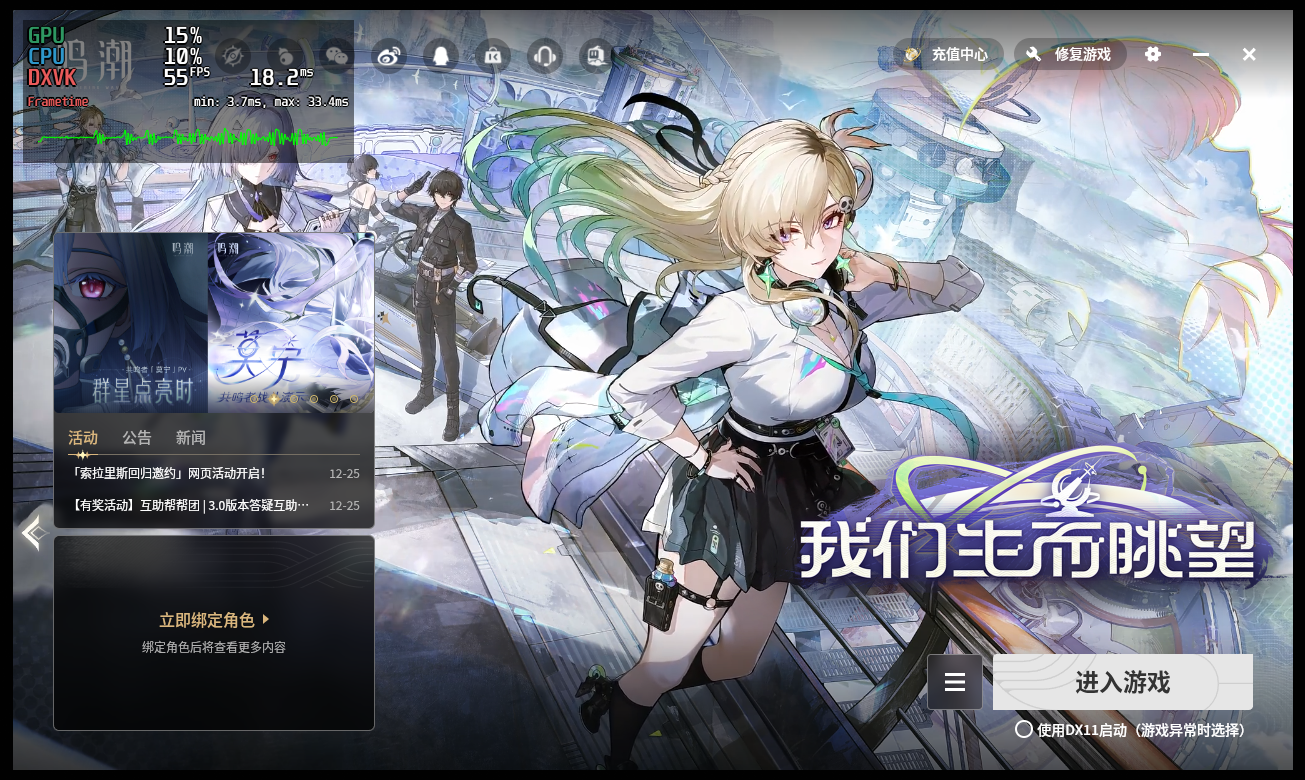
个人在使用官方起动器的时候发现是无法正常启动的,怎么打开都是黑屏,什么都没有渲染。
|
||
|
||
一个解决方案如下
|
||
|
||
```bash
|
||
# 定位到启动器目录下
|
||
cd /安装路径/drive_c/Program Files/Wuthering waves/2.5.0.0
|
||
|
||
# 备份
|
||
mv launcher_main.dll launcher_main.dll.bak
|
||
|
||
# 通过以下命令使用bbe修改dll,生成新的launcher_main.dll
|
||
# bbe可以通过 paru -S bbe 安装
|
||
bbe -e "s/\x12AllowsTransparency/\x09IsEnabled\x1bA\x00\x03AAAAA/" launcher_main.dll.bak > launcher_main.dll
|
||
```
|
||
|
||
之后就可以正常使用客户端启动器了,不过如果之后客户端启动器本身更新的话,可能需要在执行一次此步骤
|
||
|
||
|
||
|
||
## 3. 配置steam启动非steam游戏
|
||
|
||
1. 点击steam右下角加号添加非steam游戏,选择安装好鸣潮客户端启动程序。
|
||
|
||
启动程序路径一般是在 `/xxx/Wuthering Waves Game/`目录下,不过根据网上能够看到的大部分建议使用这个路径下的启动程序`/xxx/Wuthering Waves Game/Client/Binaries/Win64/Client-Win64-Shipping.exe`,个人测试两个启动程序都有效都可正常使用。
|
||
|
||
2. 添加游戏后右键次游戏选择`属性`,首先配置启动参数。在启动选项中填入一下参数,用于解决游戏启动ACE报错问题
|
||
|
||
```plaintext
|
||
SteamOS=1 %command%
|
||
或
|
||
STEAMDECK=1 %command%
|
||
```
|
||
|
||
3. 然后点击`兼容性`,启用 强制 用特定steam Play兼容性工具,然后选择之前下载的对应的`GE-Protonxx-xx`。
|
||
|
||
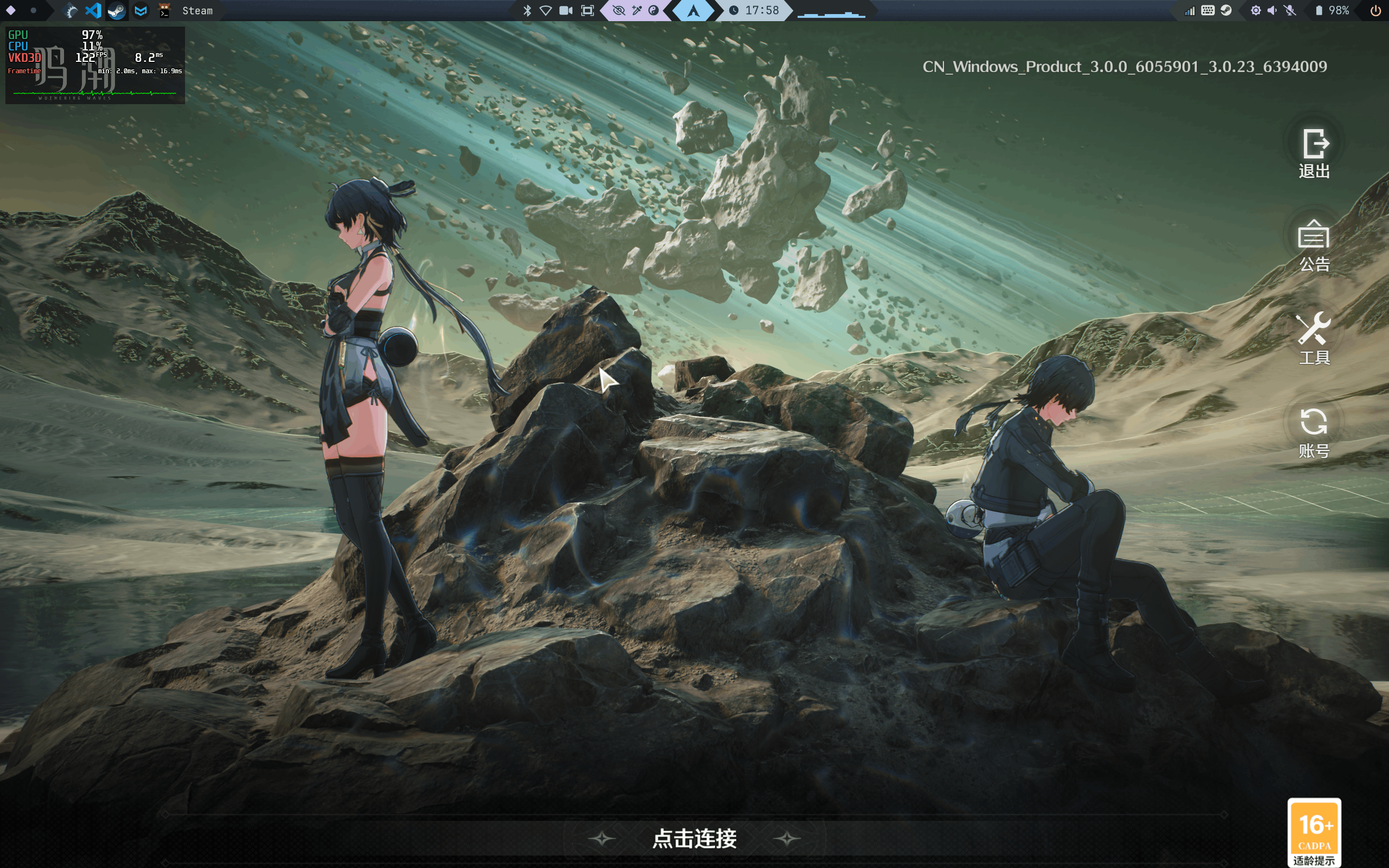
**至此**,此时就可以正常启动进入游戏里了,首次启动如果系统默认的编码是中文的话,在同意协议和首次手机号登录时候可能会有点乱码,不过不影响使用,登录之后就没有任何问题了。
|
||
|
||
## 4. 间断掉线问题解决
|
||
|
||
在玩游戏时候,会发现,游戏运行一段时间就显示与服务器失去连接,然后需要重新从主界面登录,比较影响体验, 目前找到的一个解决办法是:
|
||
|
||
修改这个目录下的文件内容
|
||
|
||
`/xxx/Wuthering Waves Game/Client/Binaries/Win64/ThirdParty/KrPcSdk_Mainland/KRSDKRes/KRSDKConfig.json`
|
||
|
||
将 KR_ChannelId 的值修改为 205
|
||
|
||
```diff
|
||
{
|
||
"KR_GameName": "鸣潮",
|
||
...
|
||
"KR_ProductId": "A1381",
|
||
- "KR_ChannelId": "19",
|
||
+ "KR_ChannelId": "205",
|
||
"KR_ChannelName": "国内PC",
|
||
"KR_ChannelOp": "null",
|
||
...
|
||
"KR_DATA_HOST": "https://mp-cn-sdklog.kurogames.com"
|
||
}
|
||
```
|
||
|
||
这个方法可以解决间断掉线问题,但是在每次首次打开游戏时候可能会提示一次 网络连接失败,点击重试即可,无伤大雅。
|
||
|
||
|